Last Updated on Sep 2, 2026 by Aishika Banerjee
Table of Contents
What Is a Demat Holding Statement?
It’s an official, date-stamped record of every security in your demat account. If you’re new to the term, see our full breakdown of what a demat holding statement is and why it matters — here, we’ll focus on exactly how to pull it on HDFC Securities.
Why You Need Your HDFC Securities Holding Statement
Tracking your portfolio
HDFC Securities’ Equity tab already shows Invested Value, Current Value, Unrealised P&L, Today’s P&L, and Realised P&L at a glance — the Export option lets you take that same view offline as a working file, rather than just a live screen you’d have to note down manually.
Filing your ITR / calculating capital gains
HDFC Securities also has dedicated Capital Gains and Manage Your Capital Gains reports (alongside Profit & Loss) under its Reports/Statements section — separate from both the Equity export and the Demat Holding Statement — which are the more direct route for tax computation rather than reconstructing gains from the holdings statement yourself.
Method 1: Download via Portfolio → Equity Export
Step 1:
Log in: Go to www.hdfcsec.com and log in.
Step 2:
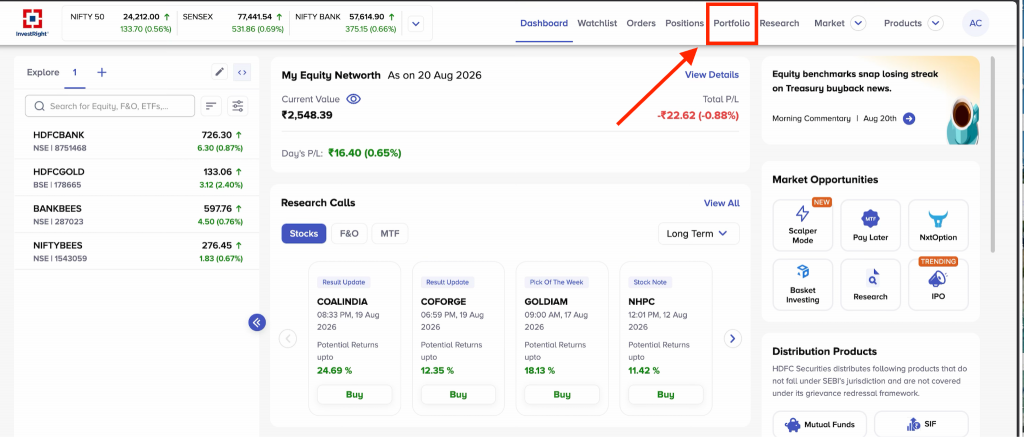
Go to the Portfolio tab: From the top navigation, click Portfolio.
Click “Portfolio” in the top navigation bar.
Step 3:
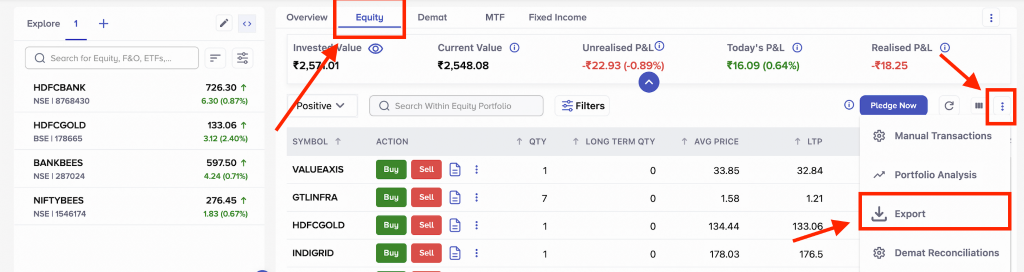
Export from the Equity tab: Click the Equity tab, then the 3-dot menu on the right, and select Export to download the report.
Open the 3-dot menu on the Equity tab and click “Export.”
Method 2: Download via Profile → Reports → Demat Holding Statement
Step 1: Click your Profile icon at the top-right corner.
Step 2: Go to Reports and select HDFC Securities Demat Holding Statement.
(Your doc didn’t have a screenshot that clearly matches this specific path — the third image extracted from it shows a Portfolio menu with “Profit & Loss” highlighted on what looks like an older HDFC Securities platform layout, not the Profile icon → Reports → Demat Holding Statement flow described above. Worth grabbing a fresh screenshot of this exact step before publishing, or confirming whether that third image was meant for a different section.)
FAQs
1. What’s the difference between the Equity export and the Demat Holding Statement?
The Equity export (Method 1) gives you your live portfolio view — quantities, P&L, current value. The Demat Holding Statement (Method 2) is the official, depository-linked record of what’s in your demat account, more suited to formal documentation needs.
2. What format does the Equity export download in?
It exports directly from the Equity tab’s 3-dot menu — check the download for your preferred format (Excel/CSV) once you click Export.
3. Can I download my HDFC Securities holding statement for a specific past date?
The Equity tab shows your live, current position. For a statement as of a specific past date, the dedicated Demat Holding Statement under Profile → Reports is the more likely option to support that.
4. Can I get a capital gains report directly, instead of calculating it from my holdings?
Yes — HDFC Securities has dedicated Capital Gains and Manage Your Capital Gains reports under Reports/Statements, built specifically for that instead of the general holding or equity export.
5. What’s Demat Reconciliation, and do I need it separately?
It’s a separate report (visible in the same Export/Reports menus) for reconciling your demat account balances — distinct from your holding statement, useful if you’re specifically checking for mismatches rather than just viewing your holdings.
6. Do I need a separate CDSL/NSDL statement, or is the HDFC Securities one enough?
For portfolio tracking and most tax-filing support needs, the HDFC Securities statement is sufficient since it’s linked to your demat account. You’d only need the CDSL/NSDL version directly if you specifically require the depository’s own record.

- US ETFs: A Complete Guide for Indian Investors - Sep 30, 2026
- US Stock Futures: Meaning, Timings and How Indian Investors Read Them - Sep 11, 2026
- How to Download Your IndMoney (INDstocks) Demat Holding Statement? - Sep 2, 2026